Installing an SSL Certificate (as a Trusted Root Certification Authority)
- On the iOS device, open the link relevent to you location
- The Minster School - http://firewall.nationalacademy.org.uk:4193
- National Church of England Academy - http://firewall.minsterschool.org.uk:4193
- Tap to download the SSL Certificate.
The device will show a message: "This website is trying to download a configuration profile. Do you want to allow this?"
- Tap Allow.
The device will show another message: "Review the profile in Settings app if you want to install it."
- Tap Close.
Figure 1: Profile Downloaded
Next Steps: Installing the Profile
- Open the Settings app.
- Underneath the User details for the device, tap Profile Downloaded.
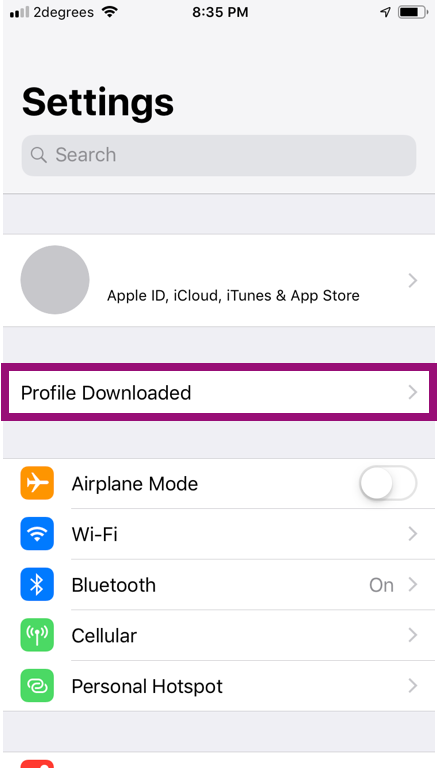
Figure 2: Profile Downloaded
The Install Profile screen will be displayed.
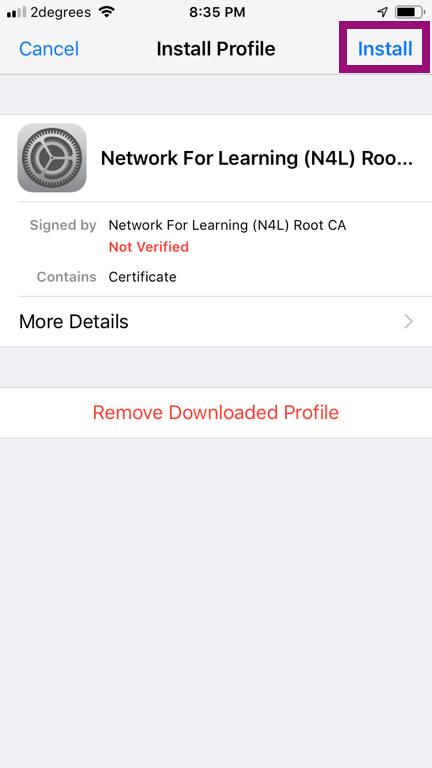
Figure 3: The Install Profile screen
In the top right corner, tap Install.
If the iOS device has a passcode set, the device will prompt you to enter it. Enter the passcode.
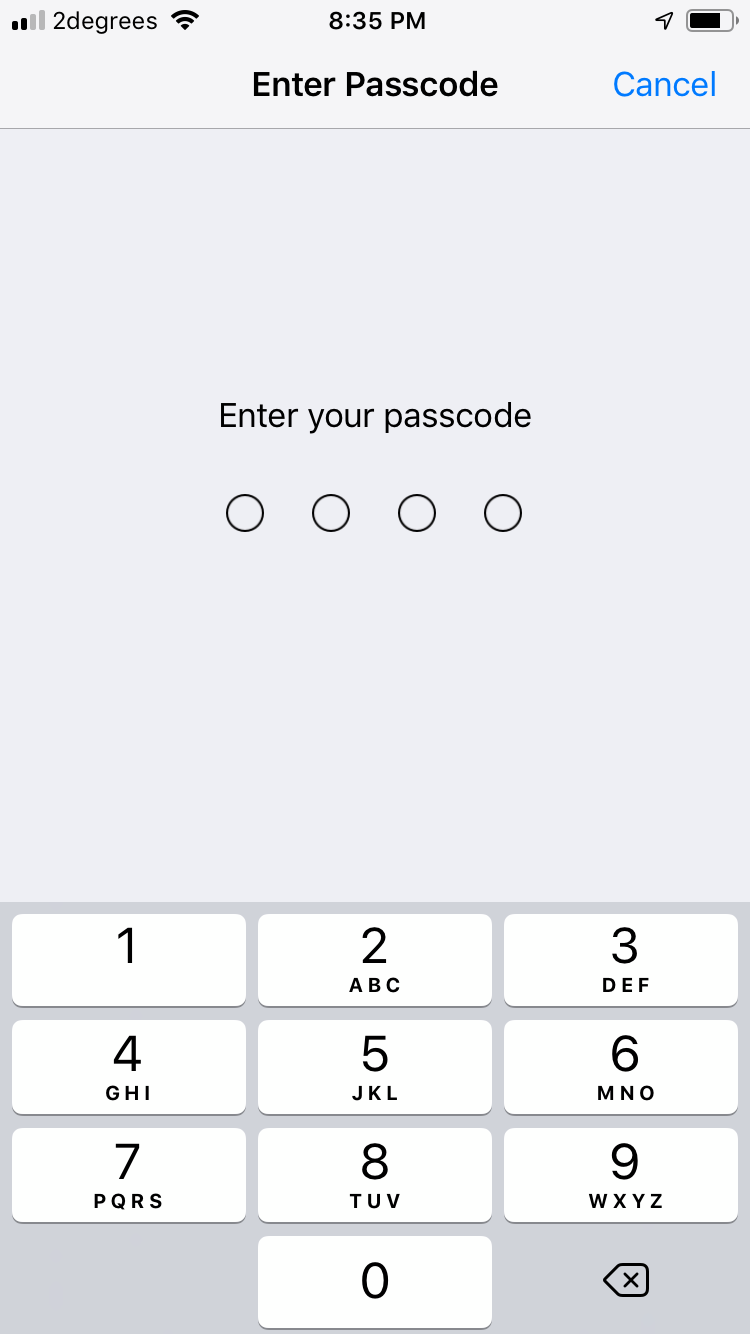
Figure 4: The passcode entry screen
A certificate warning will be displayed. Tap Install. If a second prompt is displayed, tap Install again.
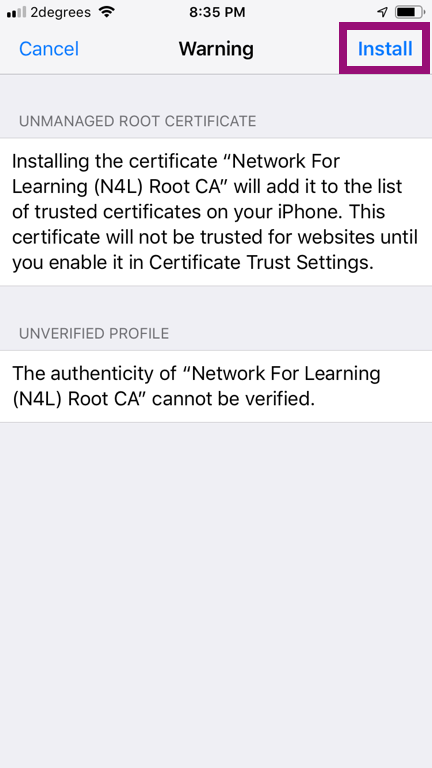
Figure 5: The Certificate Warning screen
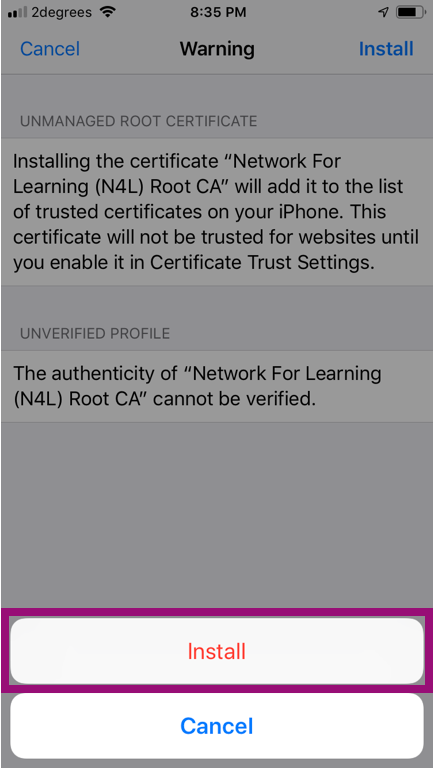
Figure 6: The second install prompt.
The Profile Installed screen is displayed. Tap Done.
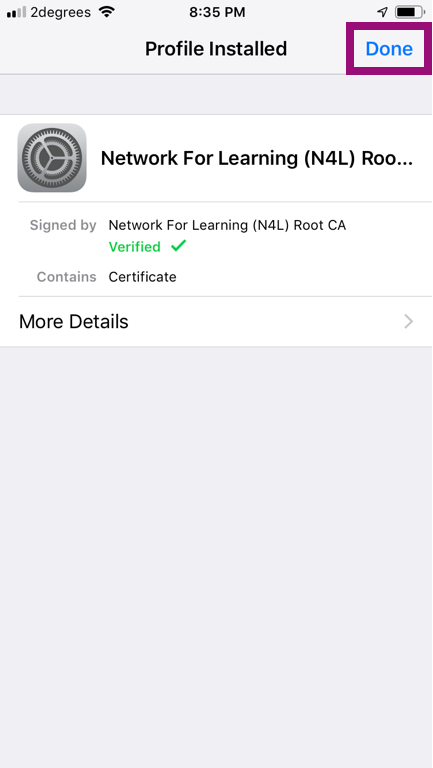
Figure 7: Tap done to complete the process
Trusting the Certificate
Before the certificate can be used as intended, it must be trusted by the device.
On the device, go to Settings > General > About > Certificate Trust Settings (at the bottom of the page).
The installed Root Certificates will be displayed in a section entitled "Enable Full Trust for Root Certificates."
There is a slide button next to each certificate.
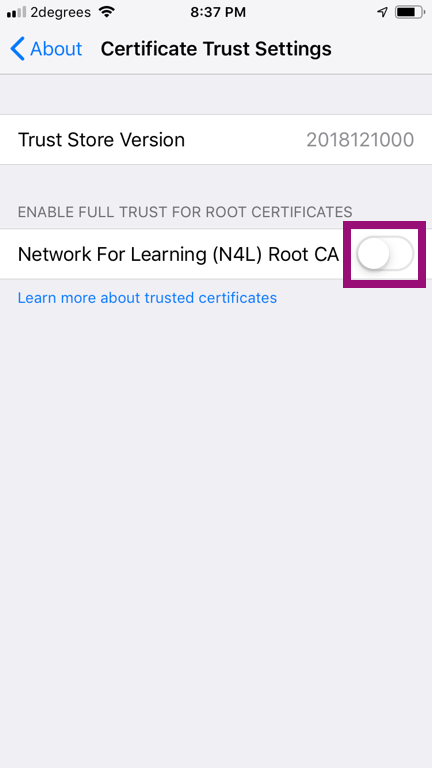
Figure 8: The Certificate Trust Settings page in Settings
Tap the slide button next to the certificate you just installed.
A confirmation dialogue will be displayed.
Tap Continue.
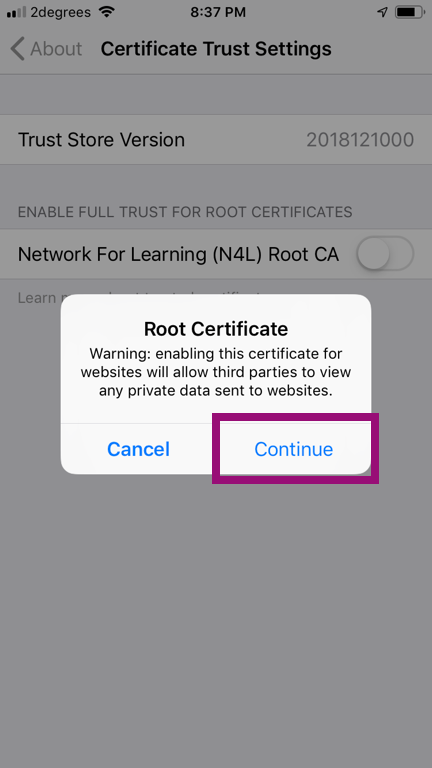
Figure 9: The confirmation dialogue
When do I need to perform these steps?
Installing an SSL certificate is usually required after configuring SSL Filtering for the first time, or when the certificate has expired or been re-issued.
If you are installing certificates manually on all of your iOS devices, these steps will need to be performed on each new device that is to be subject to SSL Filtering.
Was this article helpful?
That’s Great!
Thank you for your feedback
Sorry! We couldn't be helpful
Thank you for your feedback
Feedback sent
We appreciate your effort and will try to fix the article