Learn to spot a suspicious email
Be careful of any email where:
Urgent call to action or threats - Be suspicious of emails and Teams messages that claim you must click, call, or open an attachment immediately. Often, they'll claim you have to act now to claim a reward or avoid a penalty. Creating a false sense of urgency is a common trick of phishing attacks and scams. They do that so that you won't think about it too much or consult with a trusted advisor who may warn you.
Tip: Whenever you see a message calling for immediate action take a moment, pause, and look carefully at the message. Are you sure it's real? Slow down and be safe.
First time, infrequent senders, or senders marked [External] - While it's not unusual to receive an email or Teams message from someone for the first time, especially if they are outside your organization, this can be a sign of phishing. Slow down and take extra care at these times. When you get an email or a Teams message from somebody you don't recognize, or that Outlook or Teams identifies as a new sender, take a moment to examine it extra carefully using some of the measures below.
Spelling and bad grammar - Professional companies and organizations usually have an editorial and writing staff to make sure customers get high-quality, professional content. If an email message has obvious spelling or grammatical errors, it might be a scam. These errors are sometimes the result of awkward translation from a foreign language, and sometimes they're deliberate in an attempt to evade filters that try to block these attacks.
Generic greetings - An organization that works with you should know your name and these days it's easy to personalize an email. If the email starts with a generic "Dear sir or madam" that's a warning sign that it might not really be your bank or shopping site.
Mismatched email domains - If the email claims to be from a reputable company, like Microsoft or your bank, but the email is being sent from another email domain like Gmail.com, or microsoftsupport.ru it's probably a scam. Also be watchful for very subtle misspellings of the legitimate domain name. Like micros0ft.com where the second "o" has been replaced by a 0, or rnicrosoft.com, where the "m" has been replaced by an "r" and a "n". These are common tricks of scammers.
Suspicious links or unexpected attachments - If you suspect that an email message, or a message in Teams is a scam, don't open any links or attachments that you see. Instead, hover your mouse over, but don't click the link. Look at the address that pops up when you hover over the link. Ask yourself if that address matches the link that was typed in the message. In the following example, resting the mouse over the link reveals the real web address in the box with the yellow background. The string of numbers looks nothing like the company's web address.

How to report or review a suspicious email
Although our first instinct may be to delete suspicious emails, we recommend that you report them to our IT Services team. We will examine the email and, if necessary, advise you of any further steps you may need to take. After you report an email, a copy is provided to to the IT Services Team to review and then in turn is then provided to the National Cyber Security Centre and Microsoft to aid research in combating these campaigns.
 | Forward us as many suspicious emails as you like |
 | Send us emails that feel suspicious, even if you're not certain they're a scam, we can check. |
 | Don't click on any links in a suspicious email. |
 | You don't need to forward us suspicious emails you find in your junk folder. |
If you are unsure about the legitimacy of an email, please forward it as an attachment (CTRL + ALT + F) to itsupport@mitretrust.org.uk. We will be able to review this email provide you with advice.
Microsoft Outlook (Desktop client)
Select the suspicious email in Outlook.
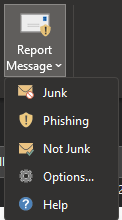
Under the Home tab, select "Report Message" and then the appropriate options.
- Junk emails are unsolicited emails (sales/newsletters)
- Phishing emails aim to gather your personal information and credentials (for example, an email requesting payment for an overdue invoice).
Microsoft Outlook Online (Online via Office 365)
Select New and click the icon in the upper right-hand corner of the message to compose it in its own window.
Drag the suspicious email into the body of the new message to make it an attachment.
Add itsupport@mitretrust.org.uk in the To: field and send the email.
Was this article helpful?
That’s Great!
Thank you for your feedback
Sorry! We couldn't be helpful
Thank you for your feedback
Feedback sent
We appreciate your effort and will try to fix the article